Open Settings → API tokens and select Create token. Give the token a name, choose what it may do (Full access or Only what I choose) and after how long it stops working, then select Create token. Copy it at once with Copy token: you see the token only once. A token works like a password for a program, so store it safely; Revoke ends it at any time.
What you need
- A Skyline Cloud sign-in. A token is a key that lets a program use your account without signing in.
- A safe place for the token, such as a password manager or the secrets store of your CI system.
How do I create an API token?
Open API tokens. Select Settings in the console menu and open API tokens. The page lists your tokens and says how many you have.
Start a token. Select Create token. The panel Create a token opens.
Name it. Under Name say what will use this token, for example "Accounting sync". One token per program makes it easy to revoke just that one later.
Choose what it may do. Under What it may do pick Only what I choose (safer) and tick what the program needs: See mailboxes, Create and change mailboxes, See domains, Add and change domains. Full access gives everything the API offers.
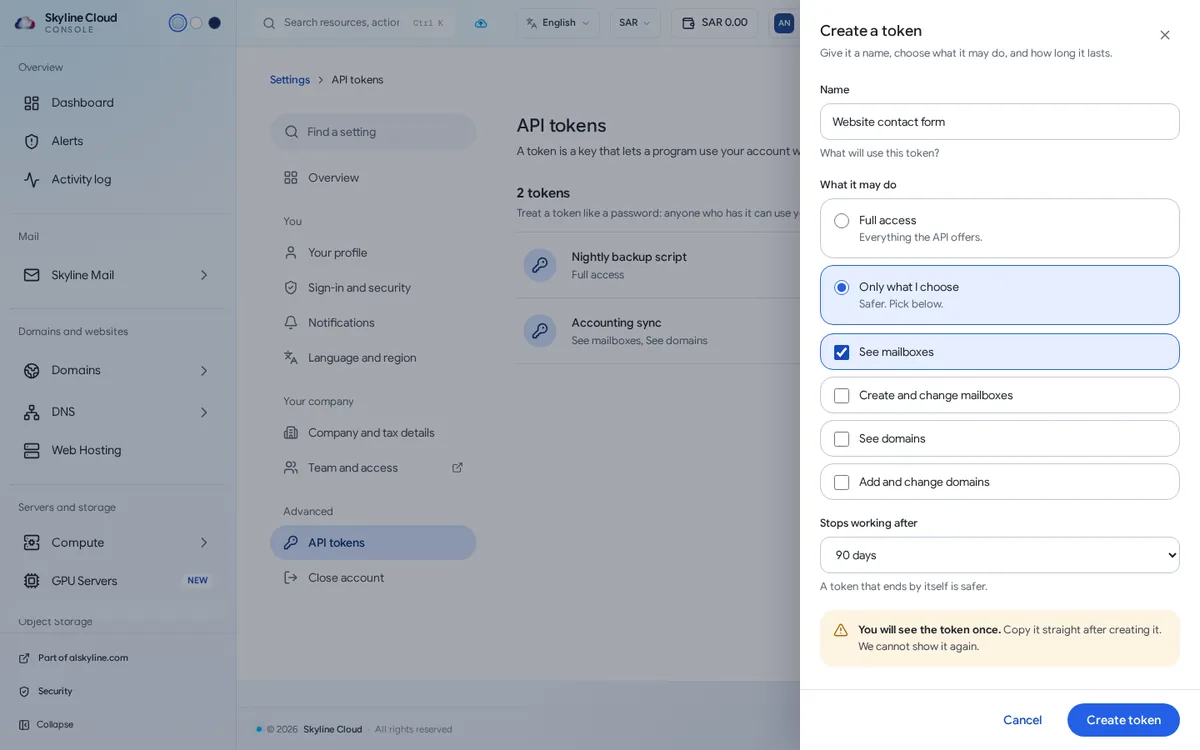
Choose when it ends. Under Stops working after choose a number of days, or Never. A token that ends by itself is safer.
Create and copy. Select Create token. Under Copy your token now select Copy token and store it; it cannot be shown again. The panel also names the header in which programs send the token.
Review and revoke. Each token in the list shows what it may do, when it was last used and when it expires. Select Revoke and confirm with Revoke token to end one.
How should I look after tokens?
- Treat a token like a password: anyone who has it can use your account. Never put it in an email, a chat or source code.
- Give each program its own token with the smallest access that works.
- Set an end date and replace tokens on a schedule.
- Revoke a token as soon as a program is retired, a laptop is lost, or the person who created it leaves.
- Check Last used now and then; a token marked Never used should be revoked.
If something goes wrong
| What you see | What to do |
|---|---|
| You closed the panel before copying the token | It cannot be shown again. Revoke it and create a new one. |
| A program gets "not allowed" answers | The token lacks the access for that action. Create a token with the right choices under What it may do. |
| A token stopped working | It expired or was revoked; the list shows Expired with the date. Create a new one. |
Frequently asked questions
Can I see a token again later?
No. Only the name, what it may do and its usage stay visible. If the value is lost, create a new token.
What can a token do?
With the choices on the page, a token can see mailboxes, create and change mailboxes, see domains, and add and change domains, or have full access to what the API offers.
Are tokens shared with my team?
No. A token belongs to the person who created it and uses that person's account.
Related guides
- How to change your Skyline Cloud password
- How to read and export the activity log in Skyline Cloud
- Skyline Cloud roles explained: what each role can do
- How to remove a person from your Skyline Cloud account
- How Skyline Cloud works: all guides
Ready to do it? Sign in to Skyline Cloud. No account yet? Create your account; opening one is free and needs no card.
Comments
0 total · 0 threads