Open Alerts in the console menu. The Alert Center lists what needs attention across your products, most serious first, as Critical, Warning or Info. Select an alert to read What happened, What it affects and What to do next, with links to the right page. Then Acknowledge it to show someone is on it, Snooze it for later, or Resolve it when it is dealt with.
What you need
- A Skyline Cloud sign-in. You see alerts for the products your role covers; billing and wallet alerts are shown to people who can see billing.
- To acknowledge, snooze or resolve: a role that may change alerts. Others can read them.
How do I work through my alerts?
Open the Alert Center. Select Alerts under Overview in the menu. The summary shows how many alerts are open and how many are Critical, Warning and Info. Check again runs the checks now.
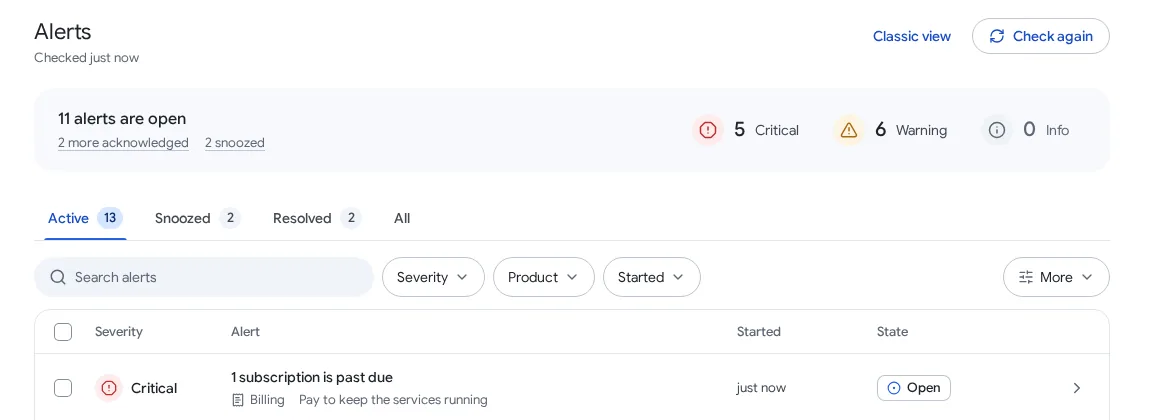
Choose what to look at. The tabs are Active, Snoozed, Resolved and All. Narrow the list with Search alerts and the Severity, Product and Started filters. Under More you can change the sort order, group repeats and export the list as CSV.
Open an alert. Select a row. The panel explains What happened in plain words, What it affects with a link to the item, and What to do next as numbered steps with links, for example to DNS, SSL or the wallet. History shows when it was raised and what was done.
Acknowledge it. Select Acknowledge to tell your colleagues you are dealing with it. The alert stays in the list with the state Acknowledged and your name.
Snooze it if it can wait. Select Snooze and pick For 1 hour, Until tomorrow, 9:00, For 3 days, For 1 week or Until a date and time. A snoozed alert moves to the Snoozed tab and no email is sent for it.
Resolve it. When the cause is fixed select Resolve. Many alerts also clear by themselves when the check no longer finds the problem. If a problem comes back, the alert is raised again and its history says so.
What do the three severities mean?
| Severity | Meaning | Examples |
|---|---|---|
| Critical | Something is down, about to stop, or needs payment now | A subscription is past due; a website has no working certificate; a computer has stopped backing up; a domain expires soon and will not renew by itself |
| Warning | Will become a problem if left alone | Certificates that expire within a few weeks while renewal is automatic |
| Info | Good to know, nothing to do right now | Notices about your services |
If something goes wrong
| What you see | What to do |
|---|---|
| The buttons are missing | Your role can read alerts but not change them. Ask an administrator for a role that includes managing alerts. |
| An alert you resolved came back | The check found the problem again. Open it and follow What to do next; the history shows each time it was raised. |
| You fixed the cause but the alert is still open | Select Check again. Some checks, such as DNS or certificates, need a few minutes after a change. |
| You only want the old layout | Select Classic view at the top of the page. |
Frequently asked questions
Do alerts also arrive by email?
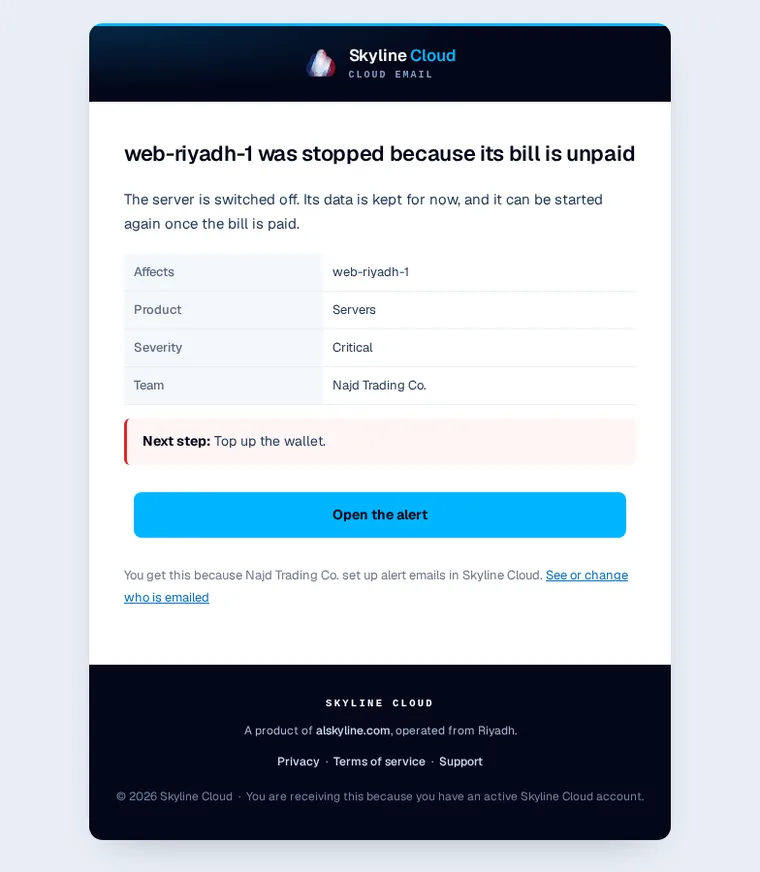
Some do by default, such as unpaid invoices and suspended services. For the rest, set rules under Alert emails; see the guide on alert emails.
Who can see an alert?
People in your team whose role covers that product. Billing and wallet alerts are shown only to people who can see billing.
Can I handle several alerts at once?
Yes. Tick the boxes at the start of the rows and use the actions that appear for the selection.
How long is a snooze allowed?
You choose, from one hour to a date and time of your own; the panel states the furthest date it accepts.
Related guides
- How to set up alert emails in Skyline Cloud
- How to read and export the activity log in Skyline Cloud
- How to top up your Skyline Cloud wallet
- How to open a support ticket in Skyline Cloud
- How Skyline Cloud works: all guides
Ready to do it? Sign in to Skyline Cloud. No account yet? Create your account; opening one is free and needs no card.
Comments
0 total · 0 threads