Open Team and access → People and select Add a person. In four steps you type their work email, choose what they can do (View only, Look after certain areas or Run the account with you), decide whether to give them a mailbox licence, and review. Select Send invitation: they receive an email with a link and join your account when they accept.
What you need
- A role that lets you add people: the owner, an administrator, or anyone given "add and remove people".
- The work email address of each person. Up to 20 can be invited at once.
How do I add a person to my account?
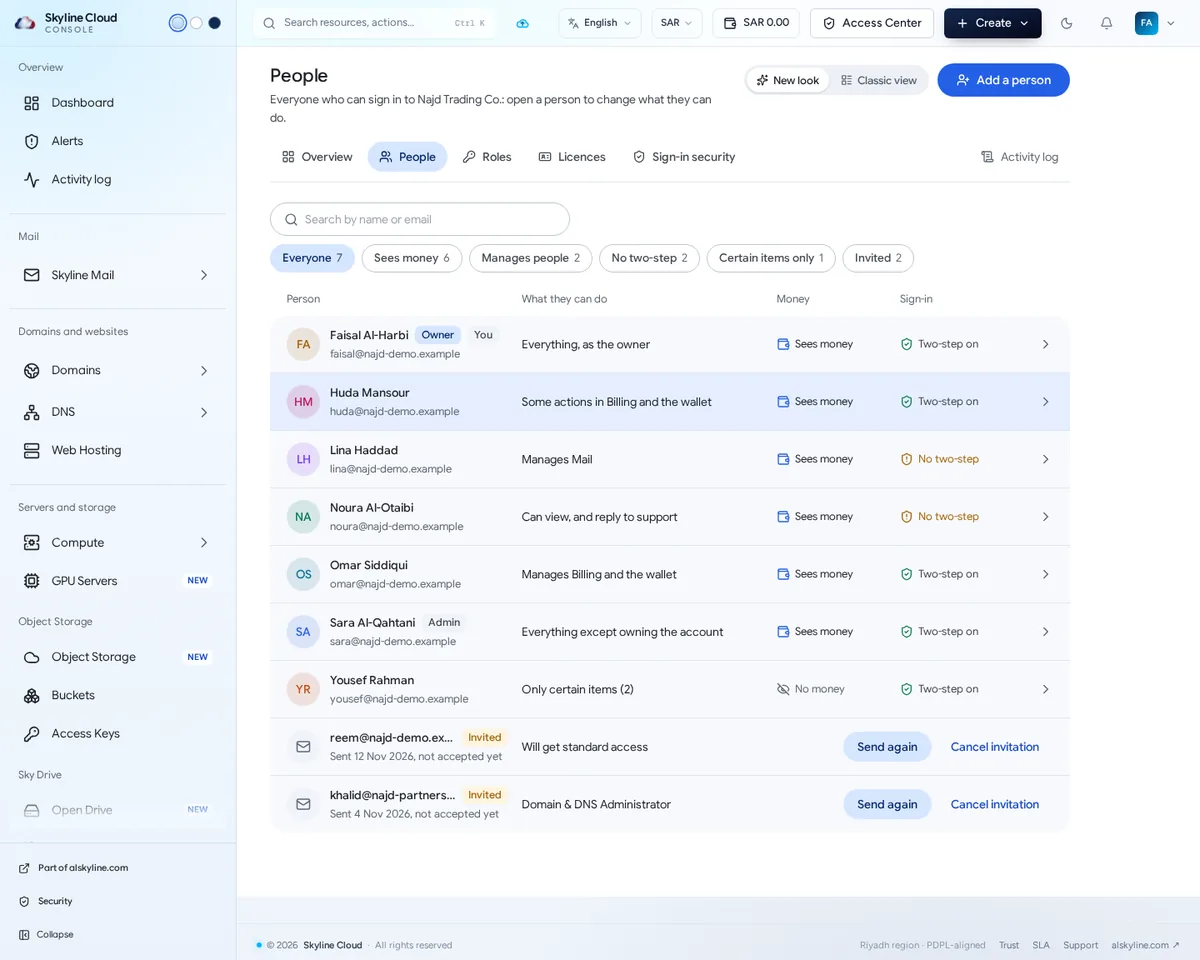
Open People. In the console menu open Team and access (the Access Center button in the top bar opens the same place), go to the People tab and select Add a person.
Step 1, Who. Under Who are you adding? type their work email. Add several at once, separated by commas or new lines. Select Next.
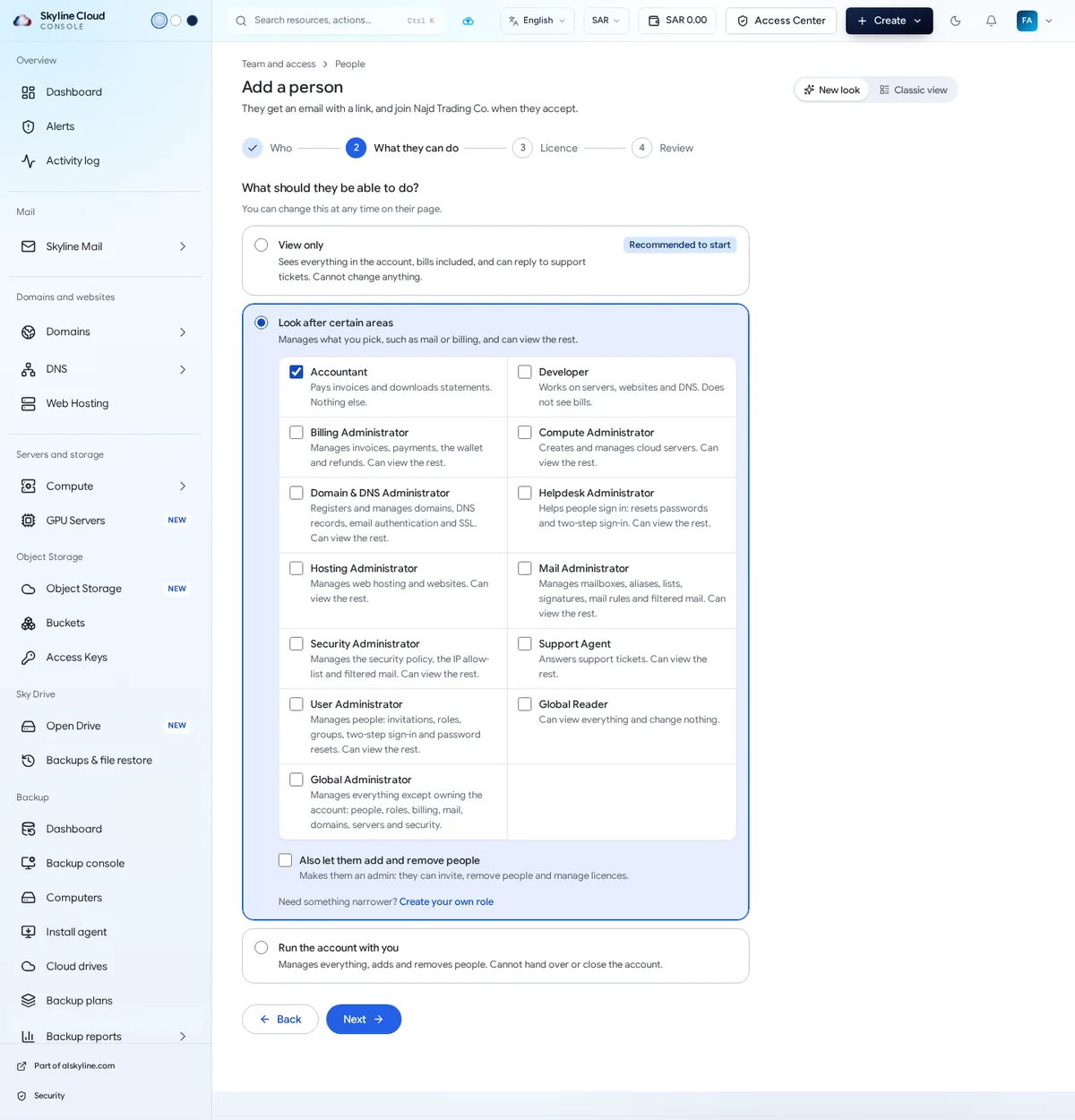
Step 2, What they can do. Choose View only (sees everything in the account, bills included, can reply to support tickets, cannot change anything; recommended to start), Look after certain areas (tick one or more roles, such as Mail Administrator or Billing Administrator; they can view the rest), or Run the account with you (manages everything and adds and removes people, but cannot hand over or close the account).
Step 3, Licence. Under Give them a licence? pick a free licence if this person should also have a mailbox, or Not now. A licence is not needed to sign in to the console, and you can give one later from their page.
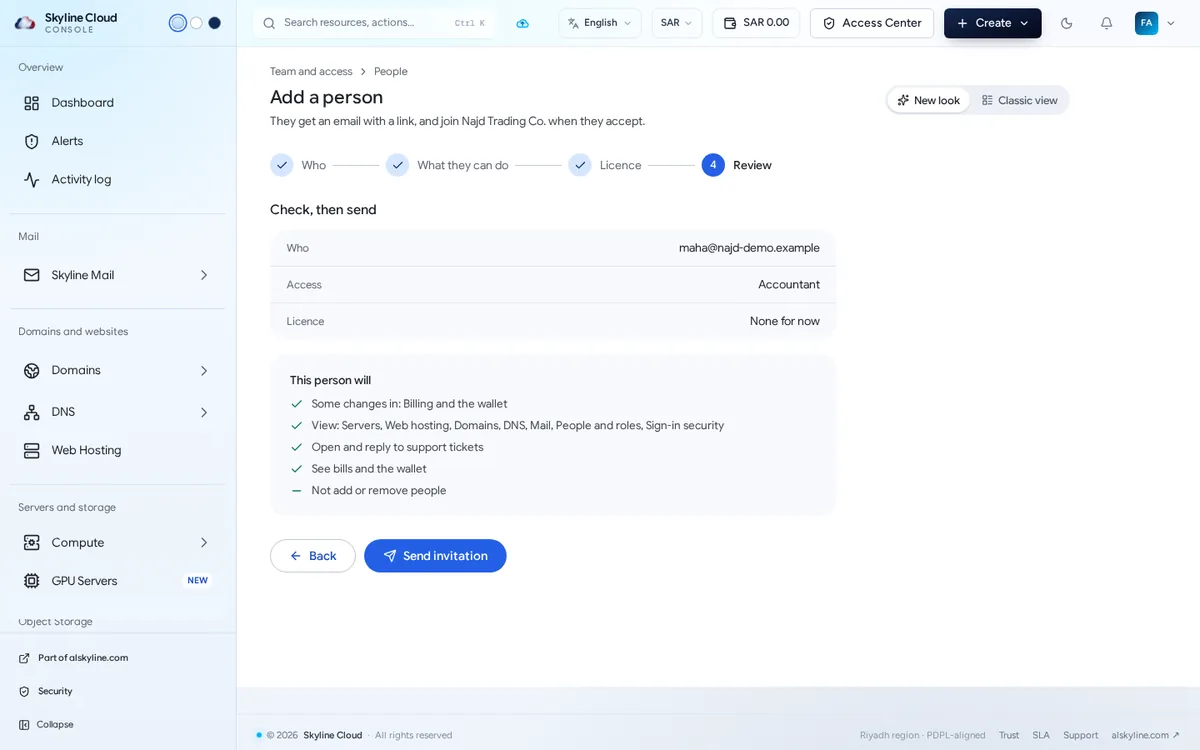
Step 4, Review. Under Check, then send read the summary: who, access, licence, and a plain list of what This person will and will not be able to do. Select Send invitation.
Follow the invitation. The person appears in the People list as Invited with the date it was sent. Use Send again if the email was missed, or Cancel invitation to withdraw it.
Which choice fits which person?
| Person | A sensible choice |
|---|---|
| Manager who only wants to look | View only |
| Accountant or finance officer | Look after certain areas → Billing Administrator |
| IT person who manages email | Look after certain areas → Mail Administrator |
| Web developer or agency | Look after certain areas → Hosting Administrator and Domain & DNS Administrator |
| Your IT partner or deputy | Run the account with you |
If none of the ready-made roles fits, use Create your own role in step 2. Whatever you choose can be changed at any time on the person's page.
If something goes wrong
| What you see | What to do |
|---|---|
| The invitation email did not arrive | Ask the person to check their junk folder, then select Send again. Check the address for typing mistakes; cancel and invite again if it was wrong. |
| A choice is greyed out: "Goes beyond your own access." | You cannot give more than you have yourself. Ask the owner to send that invitation. |
| No licence is free right now | Finish the invitation without a licence and give one later from Licences. |
| The person accepted but sees almost nothing | They were given View only or a narrow role. Open their page and give a role for the area they need. |
Frequently asked questions
Does every person I invite cost money?
Signing in to the console needs no licence. A licence is only needed for a mailbox.
Can the same person belong to several accounts?
Yes. A person has one Skyline sign-in and can be a member of several accounts, switching between them from the account menu.
Can I limit a person to certain items only?
Yes. Besides roles for whole areas, access can be limited to certain items; the People list then shows "Only certain items".
How do I see what someone can do?
The People list says it in one line per person, and their page lists every area with "Can manage" or "Can view only".
Related guides
- Skyline Cloud roles explained: what each role can do
- How to remove a person from your Skyline Cloud account
- How to require two-step sign-in for everyone in your Skyline Cloud team
- How to set up alert emails in Skyline Cloud
- How Skyline Cloud works: all guides
Ready to do it? Sign in to Skyline Cloud. No account yet? Create your account; opening one is free and needs no card.
Comments
0 total · 0 threads