The mail log lists every message to or from your mailboxes and what became of it. Open Skyline Mail → Mail log, search by sender, recipient or subject, and read the Status and reason column: Delivered, Received, Waiting, Not delivered or Refused, each with a plain reason such as "The address does not exist". Export CSV downloads the filtered list.
What you need
- A role that can view mail in the Skyline Cloud console.
- Something to search for: the sender, the recipient, or a word from the subject, and roughly when the message was sent.
How do I find out what happened to a message?
Open the mail log. In the console menu open Skyline Mail → Mail log. Four figures summarise the day: Sent today, Received today, Refused today and Not delivered, 30 days.
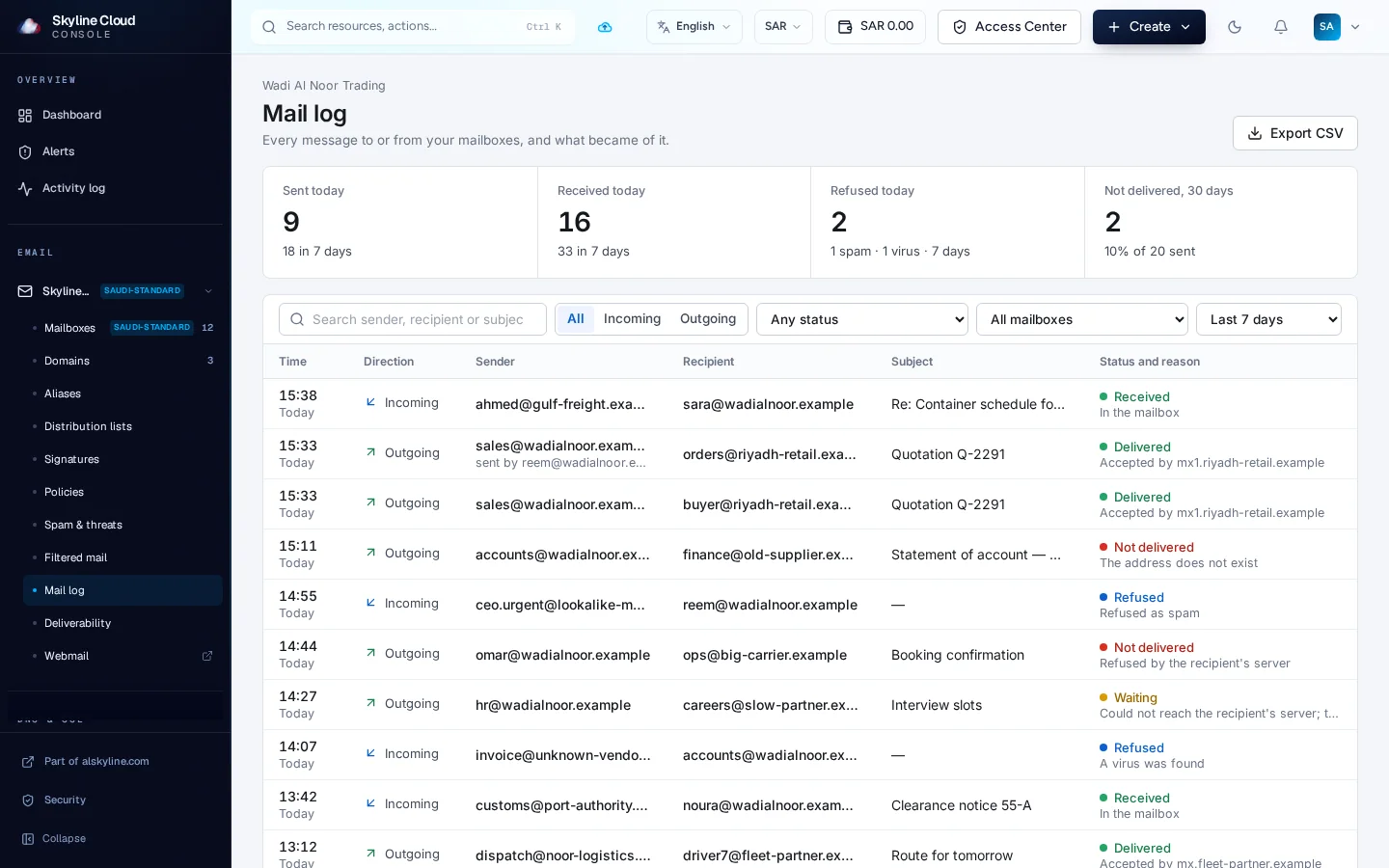
Search. Type an address or a word in Search sender, recipient or subject.
Narrow it down. Choose Incoming or Outgoing, pick a status under Any status, a mailbox under All mailboxes, and a period such as Last 7 days.
Read the status and reason. Each row shows the time, direction, sender, recipient, subject and, in Status and reason, what happened. For a delivered outgoing message you also see which server accepted it.
Export if you need a record. Select Export CSV to download the rows that match your filters, for example to send to a customer or to keep with a complaint.
What does each status mean?
| Status | Meaning | Typical reason shown |
|---|---|---|
| Received | An incoming message reached the mailbox | In the mailbox |
| Delivered | An outgoing message was accepted by the recipient's server | Accepted by the named server |
| Waiting | Not delivered yet; the system keeps trying | Not delivered yet; trying again |
| Not delivered | An outgoing message could not be delivered | The address does not exist; The recipient's mailbox is full; Refused by the recipient's server |
| Refused | An incoming message was not accepted | Refused as spam; A virus was found; Refused by your mail policy |
"Delivered" means the other mail server accepted the message. What that server does next, such as placing it in a spam folder, is not visible to any sender.
If something goes wrong
| What you see | What to do |
|---|---|
| A message you expect is not in the list | Widen the period and clear the other filters. If it is still missing, the message never reached Skyline Mail: ask the sender for the bounce message they received, and check the MX record of your domain. |
| Not delivered: The address does not exist | The recipient address is wrong or was closed. Check the spelling with the recipient. |
| Refused: Refused as spam, but the message was genuine | See the guide on the spam filter level; consider a lower level for that mailbox. |
| Waiting for many hours | The recipient's server is not answering. Delivery is retried automatically; if it finally fails the status changes to Not delivered. |
Frequently asked questions
Does the mail log show the content of messages?
No. It shows the envelope: time, direction, sender, recipient, subject and the delivery result. The message itself is only in the mailbox.
Can I prove that a message was delivered?
The log shows that the recipient's server accepted it, with the server name and time. Export the row as CSV if you need to share it.
How is this different from the activity log?
The mail log is about messages. The activity log is about what people did in your account, such as creating a mailbox or changing a policy.
Related guides
- How to set the spam filter level and use the Junk folder in Skyline Mail
- How to add your domain to Skyline Mail and pass the MX, SPF, DKIM and DMARC checks
- How to read and export the activity log in Skyline Cloud
- How to open a support ticket in Skyline Cloud
- How Skyline Cloud works: all guides
Ready to do it? Sign in to Skyline Cloud. No account yet? Create your account; opening one is free and needs no card.
Comments
0 total · 0 threads