The activity log records who did what in your account, and when. Open Activity log in the console menu, search for a person, an address, a server or an IP, and narrow the list with the filters and a period from Today to 90 days. Select an entry to see what changed and where it came from; Export CSV downloads the list.
What you need
- A Skyline Cloud sign-in. Your role decides which areas you see in the log.
- For an audit: the period and the person or item you are checking.
How do I check who changed something?
Open the activity log. Select Activity log under Overview. The summary shows the number of actions in the period, the most active people, and what is worth a look: security actions, deletions and failed attempts.
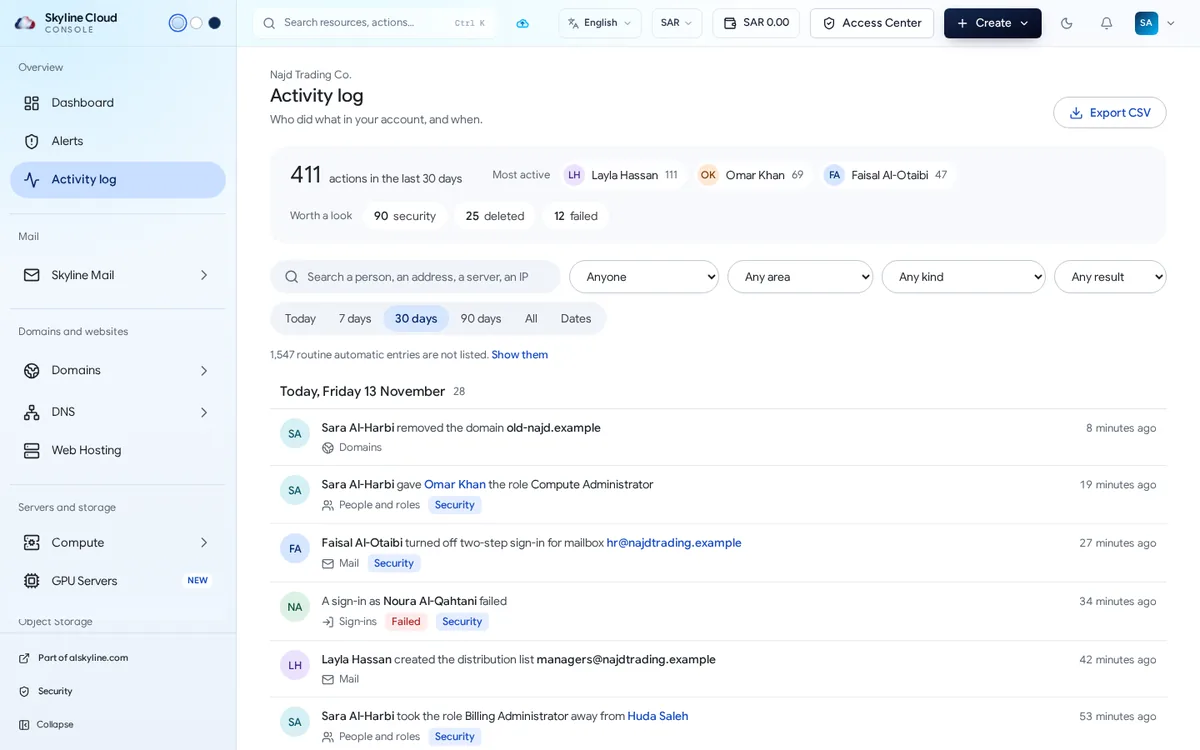
Pick the period. Choose Today, 7 days, 30 days, 90 days, All, or Dates for your own range.
Filter. Type in the search field (a person, an address, a server, an IP) or use the lists: Anyone for a person, Any area for a product such as Mail or Domains, Any kind for the type of action, Any result for done or failed. Active filters appear as chips; Clear all removes them.
Open an entry. Select a line to see What changed (old value to new value), Who did it, Where it came from (IP address and device) and what else that person did within half an hour.
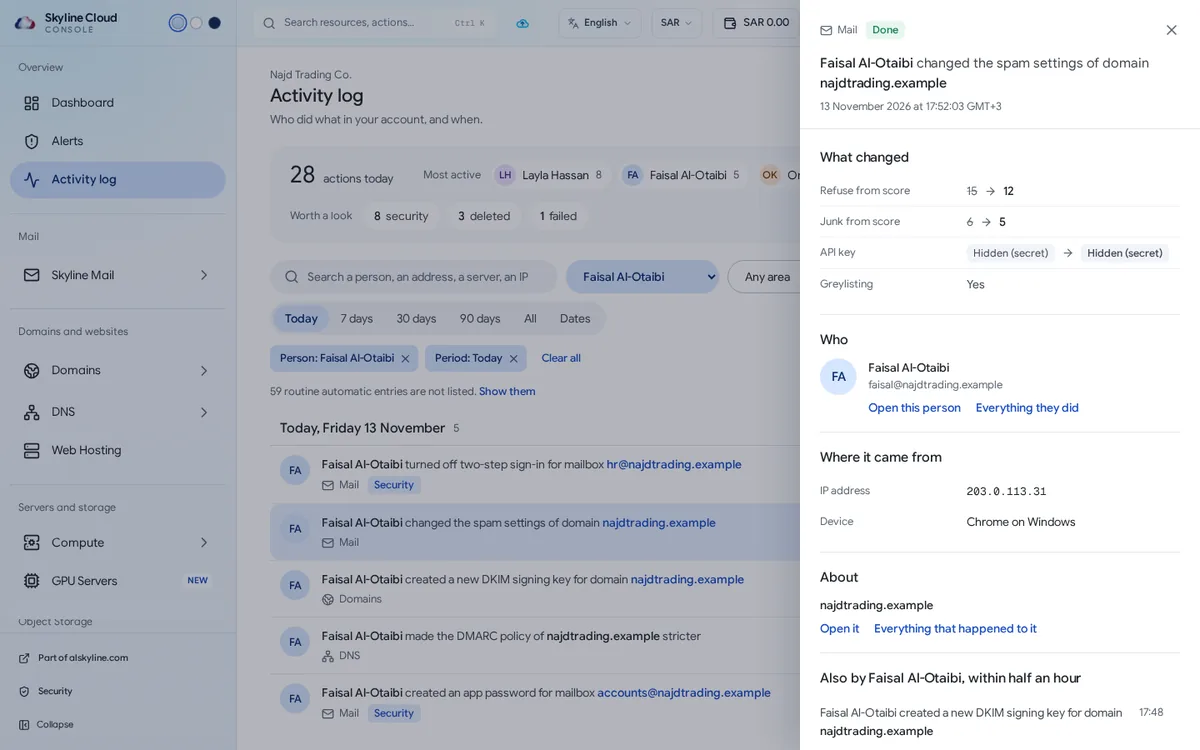
Follow the thread. From the entry, Everything they did lists all actions by that person, and Everything that happened to it lists all actions on that item.
Export. Select Export CSV to download the entries currently listed, with your filters applied.
What is recorded, and for how long?
- Actions people take in the console: creating, changing and deleting mailboxes, domains, DNS records, servers, roles, policies and more.
- Sign-ins, including failed ones.
- Work done by Skyline staff on your account is shown as such; the staff member's address and device are not shown.
- Routine automatic entries are hidden by default; select Show them to include them.
The foot of the page states how long entries are kept. By default activity entries are kept for 365 days, and role changes are kept without a limit. Secret values such as keys are never shown: the log says a secret changed, not what it is.
If something goes wrong
| What you see | What to do |
|---|---|
| The list is empty | Widen the period and select Clear all. Remember that routine automatic entries are hidden until you choose Show them. |
| You cannot see an area | The log shows the areas your role covers. Ask the owner or an administrator if you need more for an audit. |
| An entry has no IP address or device | It was finished by a background task or done automatically by the portal, so no address was recorded. The entry says so. |
| You need to ask Skyline about an entry | Open it and quote its entry number in a support ticket. |
Frequently asked questions
Is the activity log the same as the mail log?
No. The activity log is about actions in your account. The mail log is about messages sent and received.
Can entries be edited or deleted?
No. The log is a record; people in your account cannot change it.
Can I see failed sign-ins only?
Yes. Filter by the sign-in area and the failed result, then export if needed.
Related guides
- How to read and act on alerts in the Skyline Cloud Alert Center
- How to track a message with the Skyline Mail log
- Skyline Cloud roles explained: what each role can do
- How to remove a person from your Skyline Cloud account
- How Skyline Cloud works: all guides
Ready to do it? Sign in to Skyline Cloud. No account yet? Create your account; opening one is free and needs no card.
Comments
0 total · 0 threads