Open Team and access → People, select the person and choose Remove from this account, then confirm. From that moment they can no longer open your account, their roles are taken away, and a licence they hold that no mailbox uses returns to your free licences. Mailboxes, servers, websites and files stay as they are, and the person's own Skyline sign-in is not deleted.
What you need
- A role that may add and remove people (the owner or an administrator).
- A decision about their mailbox, which is separate: removing a person from the console does not delete or change any mailbox.
How do I remove a person?
Open the person. Go to Team and access → People and select the person who is leaving.
Choose Remove from this account. On their page, under Place in the account, select Remove from this account.
Read the confirmation. The dialog states what happens: the person can no longer open this account from now, their roles here are taken away, and a licence they hold that no mailbox uses goes back to your free licences. It also states what stays: mailboxes, servers, websites and files, and their own Skyline sign-in.
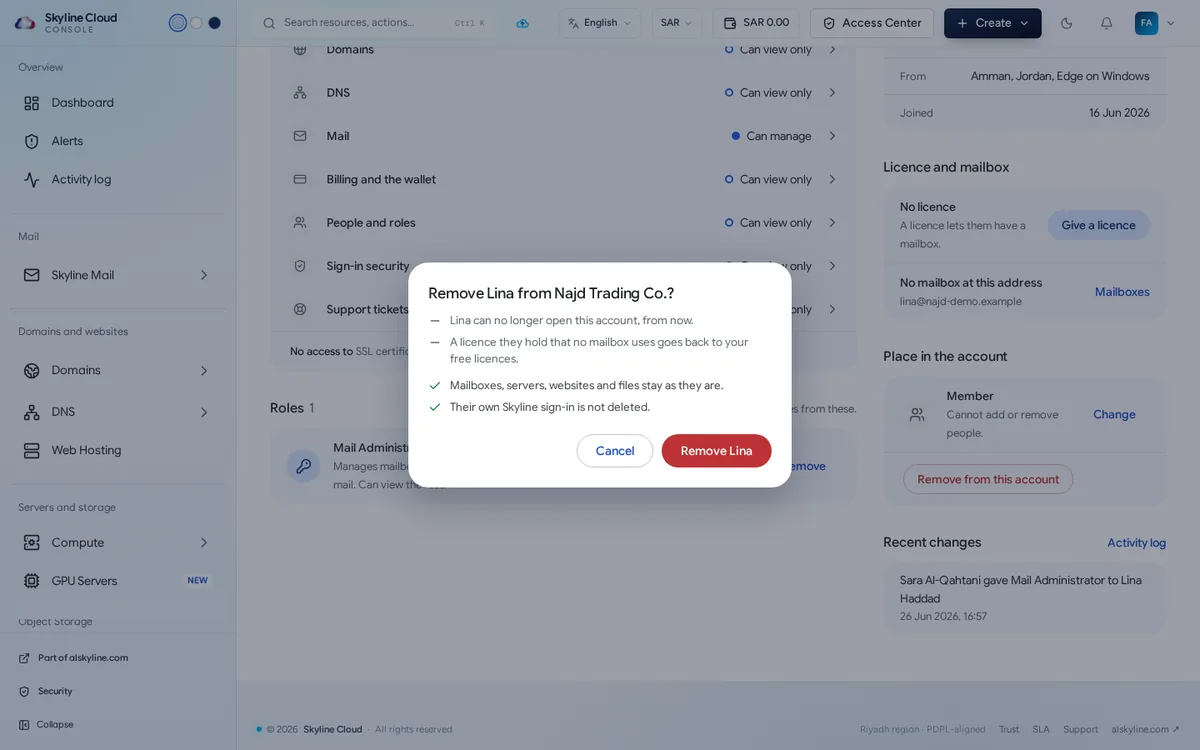
Confirm. Select the red Remove button with the person's name. A message confirms that they were removed, and the action is recorded in the activity log.
Tidy up what they used. If they had a mailbox, open Skyline Mail → Mailboxes and change its password, forward it to a colleague, or delete it. Revoke API tokens or SSH keys they created if these should stop working.
What changes and what stays?
| Changes at once | Stays as it is |
|---|---|
| The person cannot open this account | Mailboxes, servers, websites and files |
| Their roles in this account are taken away | Their own Skyline sign-in (it is not deleted) |
| An unused licence they hold returns to your free licences | Other accounts they belong to |
If you invite the same person again later, they start fresh, with only what you choose then.
How do I withdraw an invitation that was not accepted yet?
In the People list, invited people are marked Invited. Select Cancel invitation on that row and confirm. The link in the email stops working.
If something goes wrong
| What you see | What to do |
|---|---|
| The Remove button is missing | Your role cannot remove people, or the person has more access than you. Ask the owner. |
| The person still receives company email | Their mailbox is separate from console access. Change the mailbox password or delete the mailbox under Skyline Mail. |
| You removed the wrong person | Invite them again and choose their access; earlier roles are not restored automatically. |
Frequently asked questions
Does removing a person delete their mailbox?
No. Mailboxes stay as they are. Deal with the mailbox separately under Skyline Mail → Mailboxes.
Does it delete the person's Skyline sign-in?
No. Their own sign-in is not deleted and other accounts they belong to are not touched; they only lose your account.
Is the removal recorded?
Yes. It appears in the activity log with who did it and when.
Related guides
- How to invite a person to Skyline Cloud and choose what they can do
- Skyline Cloud roles explained: what each role can do
- How to read and export the activity log in Skyline Cloud
- How to create a mailbox in Skyline Mail
- How Skyline Cloud works: all guides
Ready to do it? Sign in to Skyline Cloud. No account yet? Create your account; opening one is free and needs no card.
Comments
0 total · 0 threads