Mail policies set one rule for every mailbox in your organisation. Open Skyline Mail → Policies, choose the Standard or Strict preset and review what will change before you apply it, or open a single policy such as Two-step sign-in, App access or Forwarding outside and select Save policy. A mailbox that needs a different rule gets an exception with a reason and an optional end date.
What you need
- A role that may manage the mail policy (for example Mail Administrator or Security Administrator).
- At least one mailbox. Policies also apply to every mailbox you add later, from the moment it is created.
How do I set a mail policy?
Open Mail policies. In the console menu open Skyline Mail → Policies. The top of the page shows how many mailboxes are ready for two-step sign-in, how many policies are on, the exceptions and the mail filtered this week.
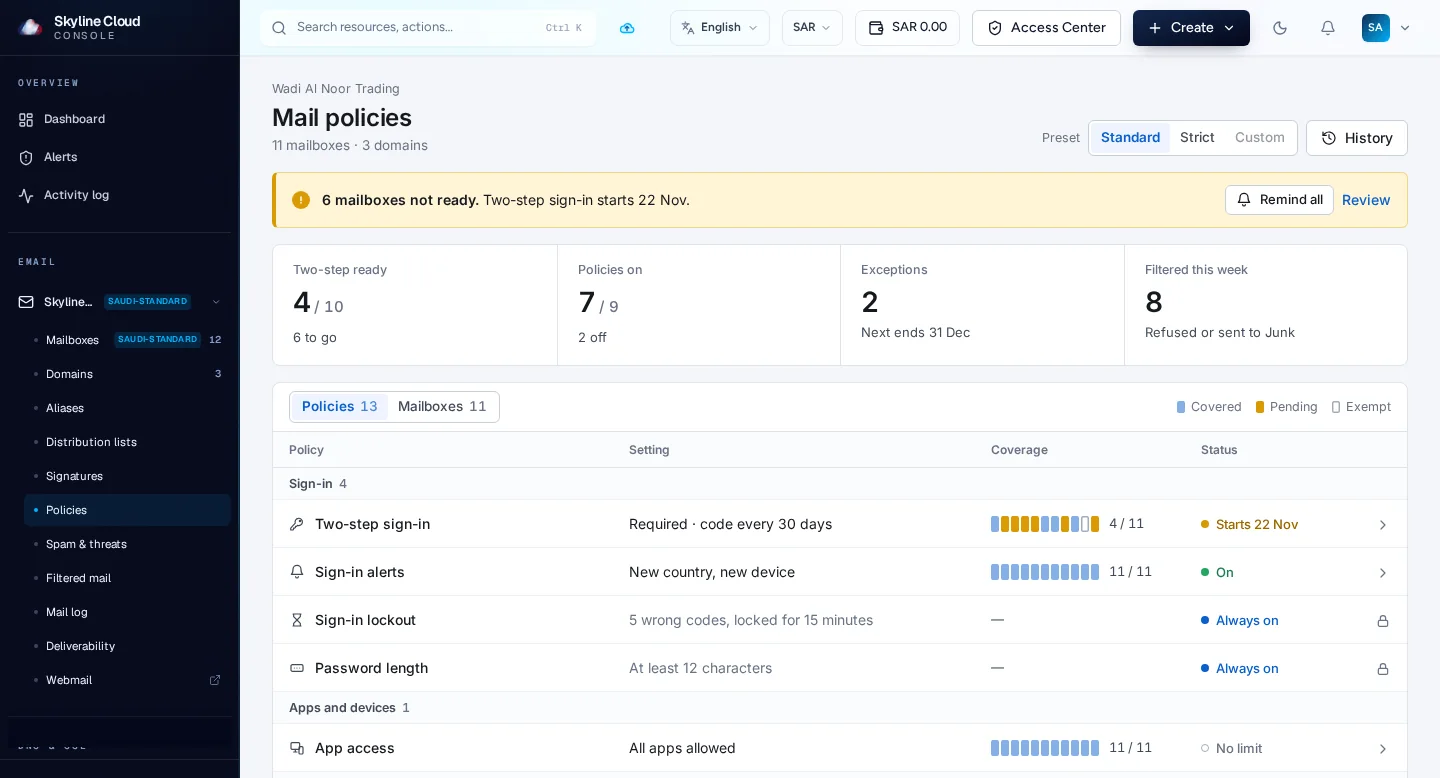
Start from a preset. Next to Preset select Standard or Strict. A panel lists What will change; nothing is applied until you confirm with the Apply button. Standard is a safe start: two-step sign-in for webmail with 14 days' notice. When you change single policies yourself, the preset shows Custom.
Change one policy. On the Policies tab select a row, for example Sign-in alerts or App access. Adjust the setting in the panel and select Save policy. The Coverage column shows how many mailboxes are covered, pending or exempt.
Add an exception where needed. Inside a policy select + Add an exception, choose the Mailbox, write a Reason (for example: scanner, shared inbox) and, if it is temporary, set Ends on. The exception ends by itself on that date.
Check one mailbox. The Mailboxes tab lists every mailbox with the rules that apply to it, so you can see who follows the policy and who has an exception.
Read the history. Select History to see who changed what, and when. The entries come from the audit log, newest first.
Which policies are there?
| Policy | What it controls |
|---|---|
| Two-step sign-in | Whether webmail asks for a code from an authenticator app after the password |
| Sign-in alerts | An alert when a mailbox is opened from a new country or a new device |
| Sign-in lockout | Always on: sign-in is locked for a short time after repeated wrong codes |
| Password length | Always on: at least 12 characters |
| App access | Which kinds of mail programs may connect to mailboxes |
| Forwarding outside | Whether mailboxes may forward mail automatically to addresses outside your organisation |
| Spam and threat protection | The spam filter level and the protection rows on the Spam & threats page |
| Sending limits | How much a mailbox may send |
If something goes wrong
| What you see | What to do |
|---|---|
| A banner says a policy could not be updated | The policy is not in force for those mailboxes yet. Open it to see why, then select Retry. |
| Not matching a policy | A mailbox differs from the rule. Open the policy and choose Apply again. |
| You can view but not change | Your role lacks the permission to manage the mail policy. Ask the account owner or an administrator to give you a role that includes it. |
| The phone app stopped after a change to App access | The Skyline Mail phone app signs in over IMAP. If IMAP and POP were switched off, switch them on again or add an exception for those mailboxes. |
Frequently asked questions
Does a policy apply to new mailboxes?
Yes. Policies apply to every mailbox you add, from the moment it is created.
What is the difference between Standard and Strict?
Both are ready-made sets of rules; Strict is tighter. The console shows exactly what each one changes before you apply it, so compare the two lists for your account.
Can one mailbox be treated differently?
Yes, with an exception. It needs a reason, can have an end date, and is counted on the page so that exceptions do not get forgotten.
Are mail policies the same as the console sign-in rules?
No. Mail policies cover mailboxes and webmail. Sign-in to the console itself is set under Team and access → Sign-in security.
Related guides
- How to require two-step sign-in for Skyline Mail webmail
- How to set the spam filter level and use the Junk folder in Skyline Mail
- How to require two-step sign-in for everyone in your Skyline Cloud team
- How to create a mailbox in Skyline Mail
- How Skyline Cloud works: all guides
Ready to do it? Sign in to Skyline Cloud. No account yet? Create your account; opening one is free and needs no card.
Comments
0 total · 0 threads