To require two-step sign-in, open Skyline Mail → Policies, select Two-step sign-in, set it to Required, choose the start date and how often a code is asked, and select Save policy. From that date webmail asks each person for a code from an authenticator app after the password. Anyone not yet set up is guided through it at their next webmail sign-in.
What you need
- A role that may manage the mail policy.
- For every user: a phone with an authenticator app (any standard one-time-code app).
- A recovery email on each mailbox is useful: reminders are also sent there.
How do I switch on two-step sign-in for all mailboxes?
Open the policy. Go to Skyline Mail → Policies and select the row Two-step sign-in.
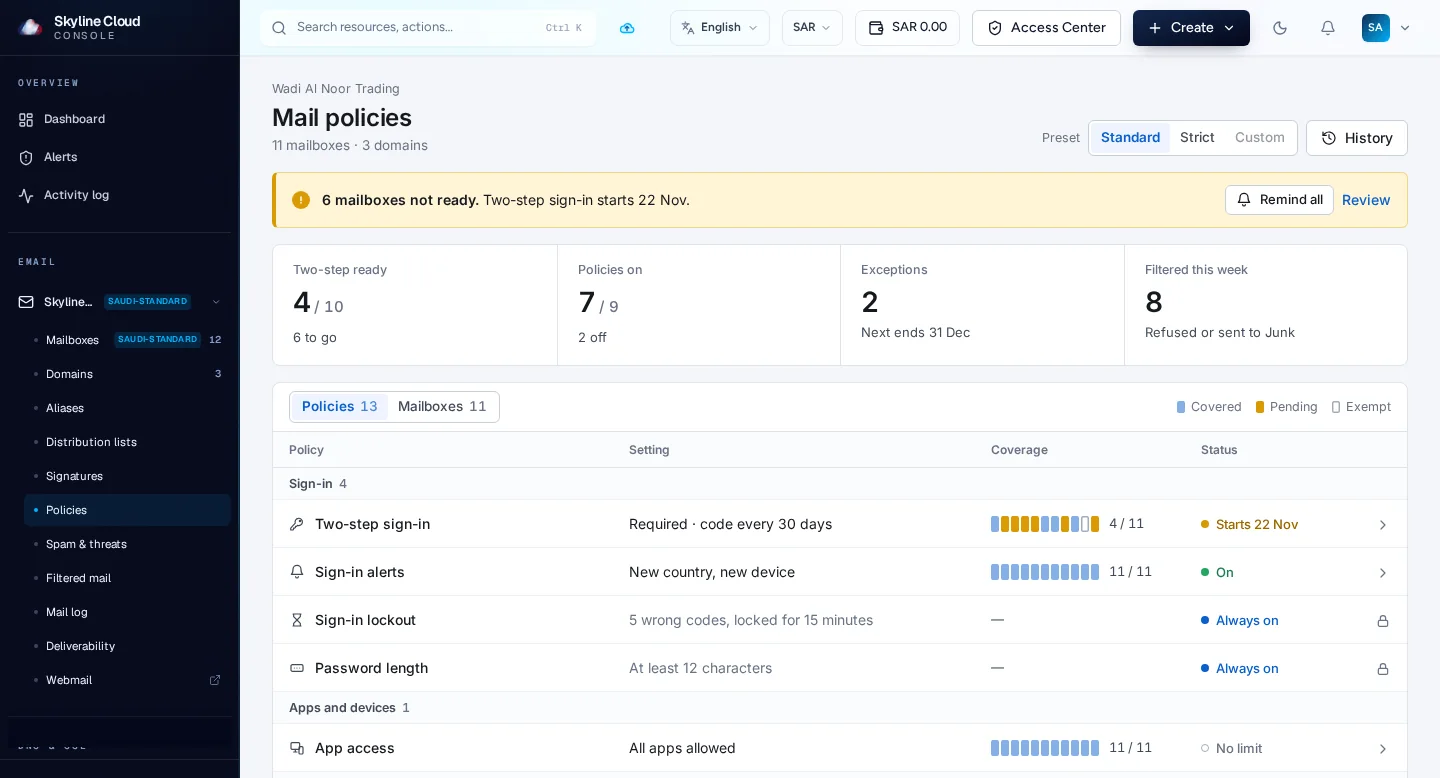
Require it and pick a start date. Set the policy to Required. Under Starts choose the date from which a code is asked; a start date a couple of weeks ahead gives people time to set up. The Standard preset uses 14 days' notice.
Choose how often a code is asked. Under Ask again choose Every 30 days or At every sign-in. The method is an authenticator app, with backup codes for the day the phone is not at hand.
Save. Select Save policy. The row now reads Required · code every 30 days (or code at every sign-in) and shows the start date until it is in force.
Follow who is ready. The panel counts mailboxes as Ready or Not set up. Select Remind next to a mailbox, or Remind all on the page banner. A reminder is emailed to the mailbox and to its recovery address, and people also see one each time they sign in to webmail.
Exempt service mailboxes. A mailbox nobody signs in to, such as a scanner address, can get an exception: select + Add an exception, pick the mailbox and write the reason. The console marks mailboxes that look unused as probably a service mailbox.
What does the user see?
At the next webmail sign-in after the start date, the user is taken through set-up: they scan a code with their authenticator app, type the six-digit code to confirm, and save their backup codes. After that, webmail asks for a code as often as you chose. Nobody is locked out for not having set up in advance.
Does two-step sign-in apply to Outlook and phone apps?
No. Mail programs such as Outlook, Apple Mail and the phone apps sign in with the mailbox password alone; they cannot ask for a code. Two-step sign-in protects webmail. To limit which mail programs may connect at all, use the App access policy on the same page.
What if someone loses their phone?
They can sign in with one of their backup codes. If those are gone too, open the mailbox in the console and select Reset two-step sign-in. The user sets up again at their next webmail sign-in.
If something goes wrong
| What you see | What to do |
|---|---|
| The banner shows mailboxes not ready close to the start date | Select Remind all. Anyone still not set up on the day is simply guided through set-up when they next open webmail. |
| A user says the code is always wrong | The time on their phone is probably off. Ask them to set the phone to automatic time, then try again. If it still fails, reset two-step sign-in for the mailbox. |
| A shared scanner or system mailbox stopped sending | Devices sign in with the password and are not asked for a code. Check App access and the mailbox password instead. |
Frequently asked questions
Which authenticator apps work?
Any app that produces standard time-based one-time codes, for example the authenticator apps from Google or Microsoft.
Can I require a code at every sign-in?
Yes. Choose At every sign-in under Ask again. The default asks again every 30 days.
Is this the same as two-step sign-in for the console?
No. This policy covers mailboxes in webmail. Two-step sign-in for people who sign in to the Skyline Cloud console is set under Team and access → Sign-in security.
Can I switch it off again?
Yes. Open the policy and switch it off. Mailboxes that already have an authenticator app keep it for when you switch the policy on again.
Related guides
- How to set mail policies for every mailbox in Skyline Mail
- How to require two-step sign-in for everyone in your Skyline Cloud team
- How to add a Skyline Mail mailbox to Outlook
- How to set the spam filter level and use the Junk folder in Skyline Mail
- How Skyline Cloud works: all guides
Ready to do it? Sign in to Skyline Cloud. No account yet? Create your account; opening one is free and needs no card.
Comments
0 total · 0 threads