Open Alerts and select Alert emails, then Add a rule. Give the rule a name, tick Which severity (Critical, Warning, Info), choose Every product or Only these products, and under Who is emailed pick the team owner, the people who manage that product, or named people. Select Save rule. Emails start with alerts raised after the rule is switched on.
What you need
- A role that may change alerts.
- The people you want to email must already be in your team; invite them first if they are not.
How do I add an alert email rule?
Open Alert emails. In the console open Alerts and select Alert emails. The page lists your rules, how many are switched on and how many emails were sent in the last 7 days.
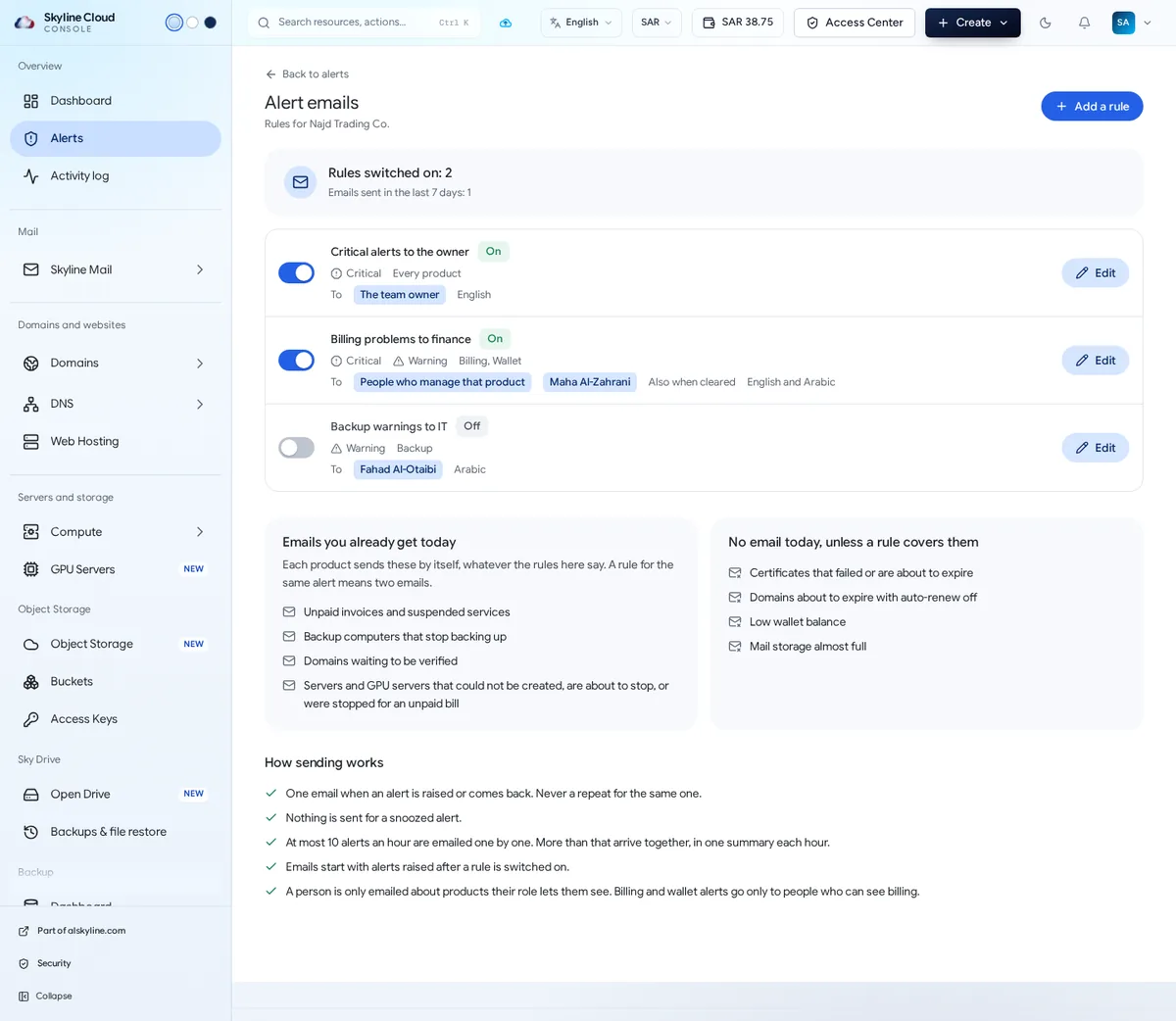
Add a rule. Select Add a rule and type a Name that says what it is for, such as "Billing problems to finance".
Choose the alerts. Under Which severity tick Critical, Warning and/or Info. Under Which products keep Every product or choose Only these products and tick them: SSL certificates, Domains, Billing, Wallet, Backup, Mail, Servers, GPU servers.
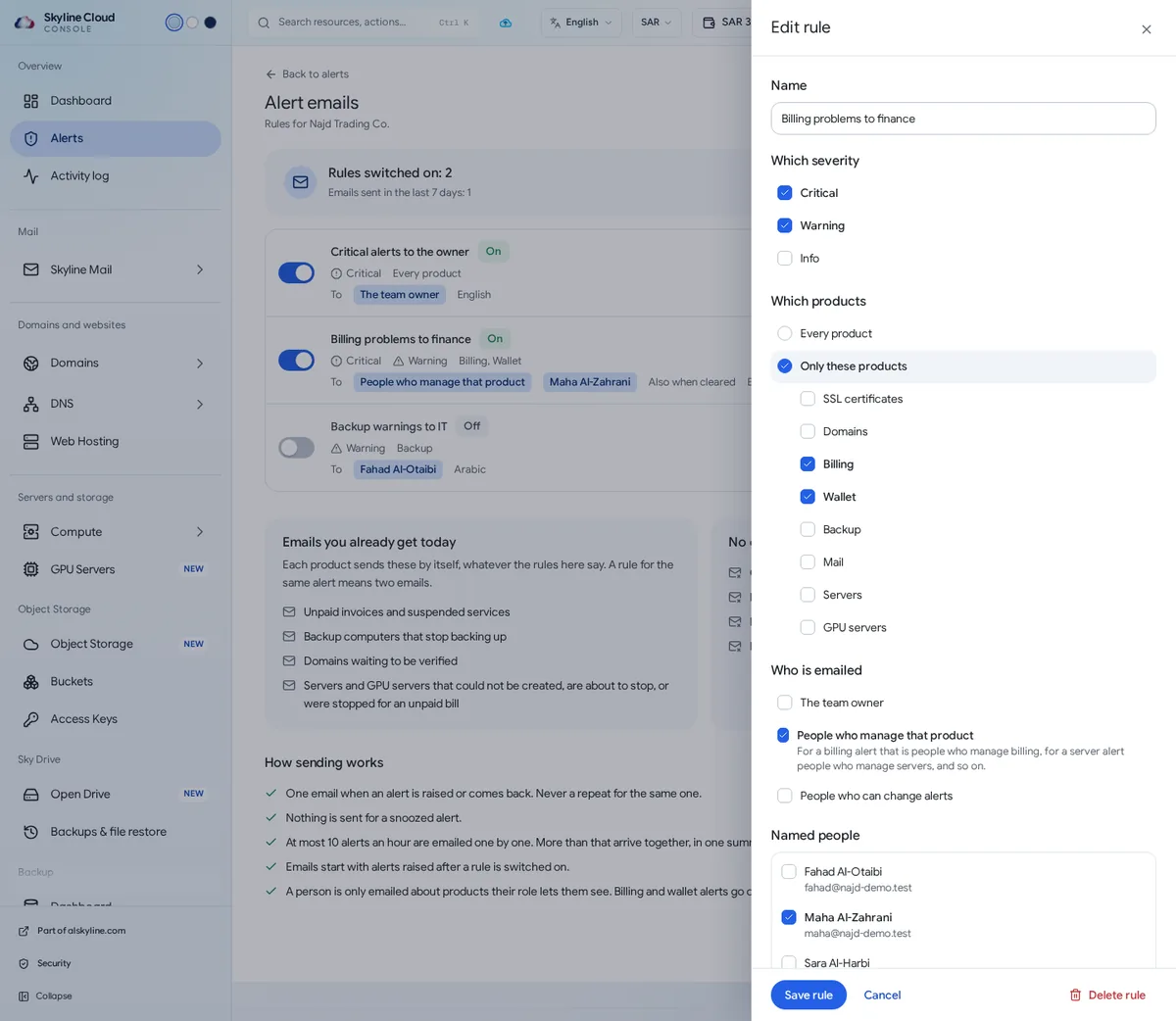
Choose who is emailed. Under Who is emailed tick The team owner, People who manage that product or People who can change alerts, and add Named people from your team if needed.
Choose language and follow-up. Pick the Language of the email (English, Arabic, or English and Arabic) and tick Also when cleared if these people should hear when the problem is over.
Save and switch on. Select Save rule. The switch at the start of each rule turns it on or off without deleting it; Edit reopens it and Delete rule removes it.
Which emails are sent even without a rule?
Each product already sends a few emails by itself, whatever your rules say:
- Unpaid invoices and suspended services
- Backup computers that stop backing up
- Domains waiting to be verified
- Servers and GPU servers that could not be created, are about to stop, or were stopped for an unpaid bill
A rule for the same alert means two emails. These are not emailed unless a rule covers them: certificates that failed or are about to expire, domains about to expire with auto-renew off, a low wallet balance, and mail storage that is almost full.
How does sending work?
- One email when an alert is raised or comes back; never a repeat for the same one.
- Nothing is sent for a snoozed alert.
- At most 10 alerts an hour are emailed one by one; more than that arrive together in one summary each hour.
- A person is only emailed about products their role lets them see. Billing and wallet alerts go only to people who can see billing.
If something goes wrong
| What you see | What to do |
|---|---|
| A person in the rule gets no email | Check that their role lets them see that product; billing and wallet alerts need a role that sees billing. Also check their junk folder. |
| Two emails arrive for the same alert | The product sends its own email and your rule adds another. Narrow the rule to the alerts that have no email of their own. |
| No email for an alert that was already open | Emails start with alerts raised after a rule is switched on. Existing alerts are in the Alert Center. |
| You cannot add or edit rules | Your role can read alerts only. Ask an administrator for a role that includes changing alerts. |
Frequently asked questions
Can alert emails be in Arabic?
Yes. Each rule has its own language: English, Arabic, or both in one email.
Can I email someone outside my team?
Rules email people who are in your team, so that nobody receives details their role does not allow. Invite the person first, with a role that fits.
What does an alert email contain?
What happened, what it affects, the product, the severity, the next step and a button that opens the alert in the console.
Related guides
- How to read and act on alerts in the Skyline Cloud Alert Center
- How to invite a person to Skyline Cloud and choose what they can do
- Skyline Cloud roles explained: what each role can do
- How to top up your Skyline Cloud wallet
- How Skyline Cloud works: all guides
Ready to do it? Sign in to Skyline Cloud. No account yet? Create your account; opening one is free and needs no card.
Comments
0 total · 0 threads