Open Settings → Sign-in and security in the Skyline Cloud console. Under How you sign in, select Change next to Password, type your current password and the new one twice, and select Change password. The panel ticks each password rule as you type, and you receive an email confirming the change. If you cannot sign in, use Forgot password? on the sign-in page. A mailbox password is separate.
What you need
- Your current password, or access to the email address of your account if you forgot it.
- A new password that meets your company's password rules; the panel lists them.
How do I change my console password?
Open Settings. Select Settings in the console menu. The Settings menu lists Your profile, Sign-in and security, Notifications, Language and region, Company and tax details, API tokens and more; Find a setting searches them.
Go to Sign-in and security. Under How you sign in find Password and select Change.
Type the passwords. In Change your password enter the Current password, the New password and New password again. Each rule under the fields gets a tick when it is met, for example the minimum length, a number, and both new passwords matching.
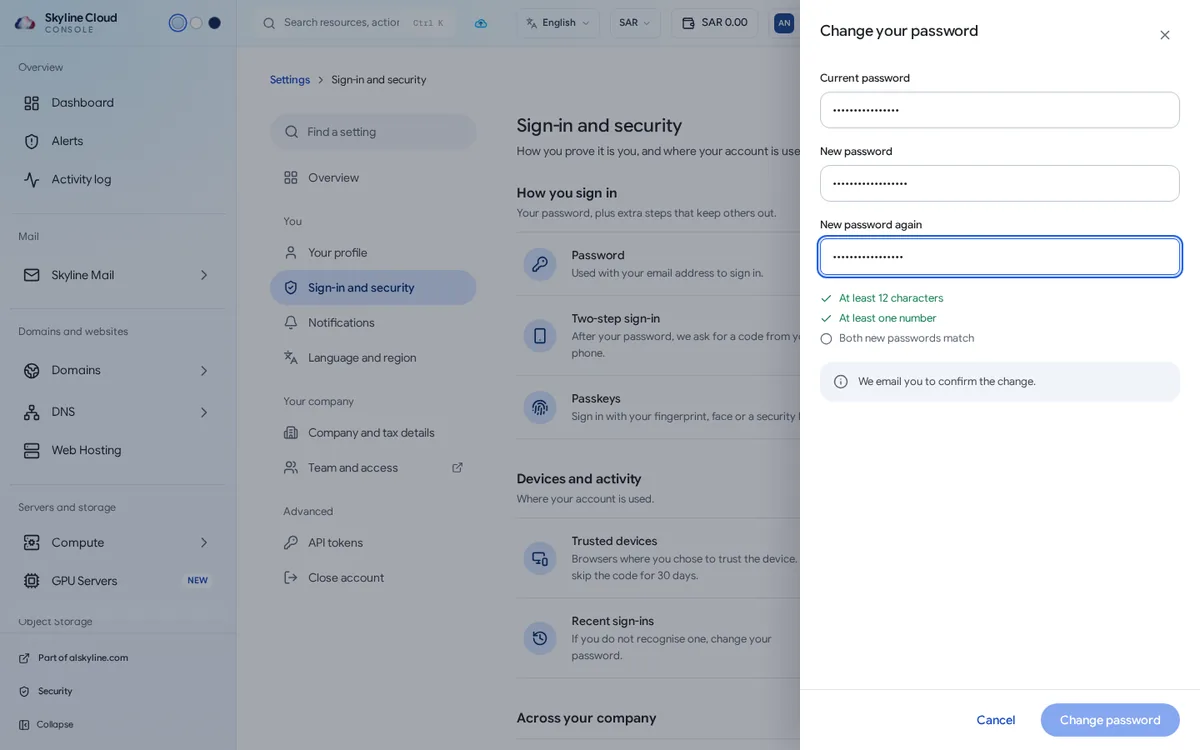
Save. Select Change password. You get an email confirming the change. Use the new password the next time you sign in.
What else is on the Sign-in and security page?
- Two-step sign-in: after your password, a code from your phone. Turn on or Manage it here; it shows Required by your company when the owner has made it compulsory.
- Passkeys: sign in with your fingerprint, face or a security key. Select Add a passkey.
- Devices and activity: trusted devices and your recent sign-ins. If you do not recognise a sign-in, change your password.
What if I forgot my password?
On the sign-in page at cloud.alskyline.com/login select Forgot password?, enter the email address of your account and follow the link you receive. If your company requires two-step sign-in, you still need your second step after the reset.
Console password or mailbox password?
| Console password | Mailbox password | |
|---|---|---|
| Used for | Signing in to cloud.alskyline.com | Webmail, Outlook and the mail apps |
| Changed by | You, in Settings → Sign-in and security | The user in webmail, or the mail administrator on the mailbox page |
| Rules set in | Team and access → Sign-in security | Skyline Mail → Policies |
If something goes wrong
| What you see | What to do |
|---|---|
| Your password has expired. | Your company asks for a new password from time to time. Choose one to carry on. |
| The Change password button stays grey | One of the password rules is not met yet. Look for the rule without a tick. You also cannot reuse your most recent passwords when your company forbids it. |
| The page says the password is not set | You sign in with another account. Select Set a password if you also want to sign in with email and password. |
| The reset email does not arrive | Check the junk folder and the spelling of the address. |
Frequently asked questions
How long must the password be?
The panel shows the minimum length your company requires, and ticks it when your new password is long enough.
Will I be told when my password changes?
Yes. An email confirms the change, so an unexpected email means you should act at once.
Should I also use two-step sign-in?
Yes. A password alone can be guessed or stolen; a second step stops most of those attempts. The owner can make it compulsory for the whole team.
Related guides
- How to require two-step sign-in for everyone in your Skyline Cloud team
- How to switch the Skyline Cloud console between Arabic and English
- How to create an API token in Skyline Cloud
- How to create a mailbox in Skyline Mail
- How Skyline Cloud works: all guides
Ready to do it? Sign in to Skyline Cloud. No account yet? Create your account; opening one is free and needs no card.
Comments
0 total · 0 threads